
Profit Hunter Indicator V1 MT4 — Catch Trends Early, Exit Smarter
Tired of late entries and messy charts that look like a Christmas tree? The Profit Hunter Indicator V1 for MT4 was built to do one simple thing really, really well: help you spot clean trend-aligned entries and exits without second-guessing every candle. It blends a direction filter, momentum pulse, and volatility guard into one overlay so you can make faster decisions—coz in fast markets, hesitation costs.
Below you’ll find what it does, how to use it in real trades, recommended pairs/time frames, and a quick install guide. Keep it simple, respect risk, and let the signals guide (not dictate) your plan.
What Is Profit Hunter Indicator V1?
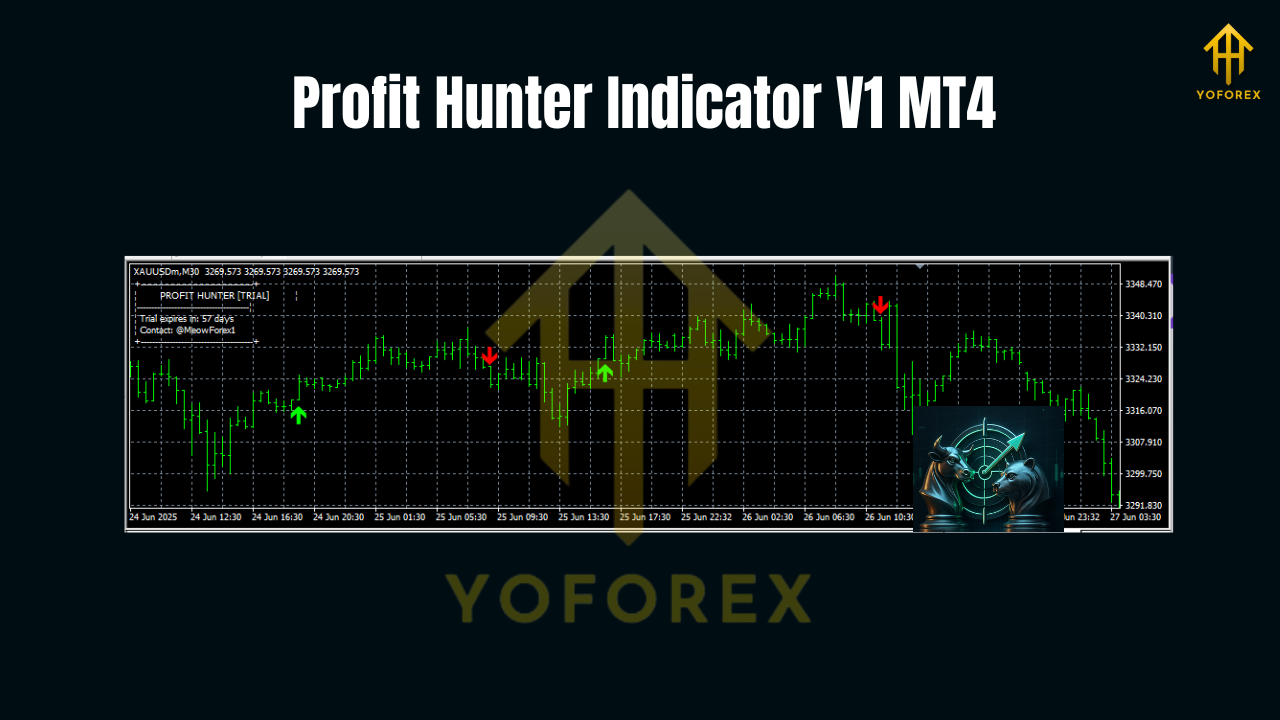
Think of Profit Hunter as a multi-signal compass for MT4. It paints arrows for potential entries, shades trend zones on the chart to keep you trading with the flow, and triggers alerts when the setup aligns (trend + momentum + volatility). The goal isn’t to predict the future; it’s to keep you leaning in the right direction—and to help you avoid chasing entries during whipsaws.
Who it’s for
- Newer traders who want an uncluttered, rules-based guide.
- Intermediates who need a consistent trend filter and timing tool.
- Scalpers on M5–M15 and swing traders on H1–H4.
Pairs & markets
- Built around majors (EURUSD, GBPUSD, USDJPY) and XAUUSD.
- Also effective on liquid crosses and indices with minor tuning.
How It Works
Profit Hunter blends three ideas:
- Trend Filter – A dynamic band/zone shows overall direction. Stay with the zone color to avoid counter-trend traps.
- Momentum Pulse – Confirms that price isn’t just drifting; it’s actually moving with force in your trade’s favor.
- Volatility Guard – Helps reduce entries into dead ranges or post-spike exhaustion, so signals don’t fire when conditions are junky.
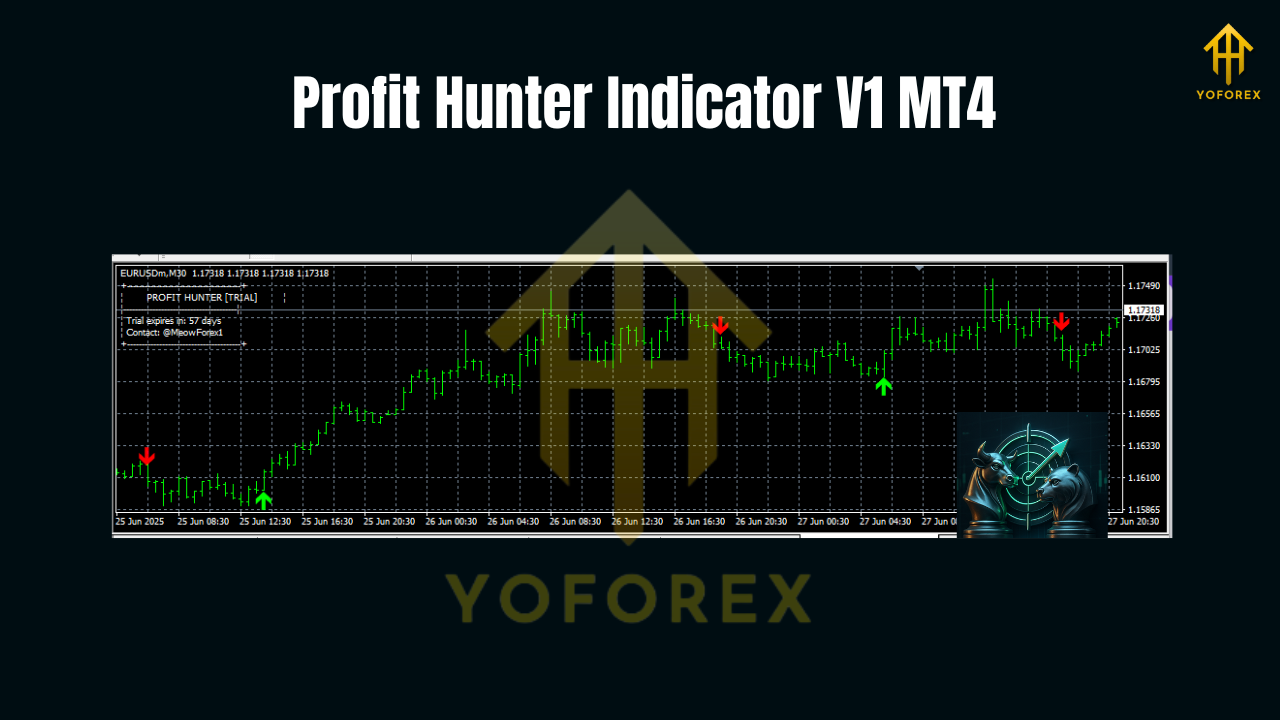
When all three align, you’ll see Buy/Sell arrows and get optional pop-up/push/email alerts. It’s not magic—just smart signal stacking.
Key Features You’ll Use Daily
- • Clear Buy/Sell arrows only when multiple conditions agree
- • Adaptive trend zone to keep trades aligned with the market’s path
- • Volatility filter that aims to dodge low-energy chop
- • Real-time alerts (popup, sound, email, push) so you won’t miss entries
- • Works on majors & gold; tuned for liquid instruments
- • Time-frame flexibility: M5–H4, with sweet spot on M15–H1
- • No repainting of confirmed signals (arrows stay once the candle closes)
- • Lightweight code for fast execution on VPS/low-spec PCs
- • Sensible defaults + expert settings for advanced users
- • Visual cleanliness: minimal clutter, high readability
- • Risk-aware design: signals consider both trend and momentum
- • Play nice with EAs: compatible as a discretionary overlay alongside automated strategies
When to Enter (Simple Rules)
Buy idea
- Trend zone turns/bends bullish and price is above it.
- A Buy arrow prints at or near the zone after a shallow pullback.
- Momentum pulse confirms (you’ll see it in the signal status/arrow timing).
- Optional: Wait for the candle to close to validate the signal.
Sell idea
- Trend zone turns bearish and price is below it.
- A Sell arrow prints after a minor pullback into the zone.
- Momentum confirms that sellers are in control.
- Again, many traders wait for candle close—your call.
Stops & targets (example)
- Stop-loss: Just beyond the opposite side of the zone or the recent swing.
- Take-profit: Fixed R multiples (1.5R–2R) or trail behind the zone.
- Break-even: Consider BE at +1R on scalps to protect capital.
Tip: On M15/H1, signals are fewer but cleaner. On M5, expect more signals and more noise—best paired with tighter money management.
Best Pairs & Time Frames
- EURUSD, GBPUSD, USDJPY – liquid, relatively orderly trends, tight spreads.
- XAUUSD (Gold) – more volatile, but Profit Hunter’s volatility guard helps filter poor spots.
- Time frames:
- M15–H1: Sweet spot. Good confirmation, manageable noise.
- M5: For scalpers; use smaller targets and sharper discipline.
- H4: Great for swing entries; fewer but high-quality signals.
Installation & Setup (MT4)
- Copy the file: Place the indicator
.ex4/.mq4inMQL4/Indicators. - Restart MT4 or refresh the Navigator.
- Attach to chart: Right-click the indicator from Navigator → Attach to Chart.
- Inputs to review:
- TrendSensitivity (default balanced)
- MomentumThreshold (avoid firing on weak pushes)
- VolatilityGuard (tighten for gold/indices if needed)
- Alerts: enable pop-up/push/email as you prefer
5. Template: Save a chart template with your preferred colors and line thickness—makes it faster to duplicate across pairs.
Starter settings
- For majors on M15/H1, keep defaults, then tweak MomentumThreshold up/down by small increments (5–10%) if you see too many/few signals.
- For Gold, slightly raise VolatilityGuard to avoid late entries after spikes.
Practical Playbook
- Trade with the zone. If price lives inside or above a green zone, look for buys; below a red zone, look for sells.
- One timeframe up check. If trading M15, peek at H1: does the higher TF agree? If yes, green flag.
- One setup, one risk. No pyramiding until your first trade is at least at break-even.
- News filter. Avoid fresh entries right before major news; spreads and slippage can wreck good signals.
- Journal it. Note which pairs/time frames pay you the most and keep doing that. Sounds obvious, but… traders forget.
Risk & Money Management
- Risk per trade: 0.5–1% for scalps; up to 2% for swings if you’re experienced.
- Max daily loss: 3% (walk away, reset).
- Cap open exposure: If you’re long EURUSD and GBPUSD, you’re basically long USD weakness twice—count correlation.
- Prop rules friendly: The indicator helps keep trades disciplined; you still need coherent SL/TP and daily limits.
Final Thoughts
You don’t need ten indicators fighting for attention. Profit Hunter Indicator V1 MT4 keeps it streamlined: go with the trend, time entries with momentum, and avoid low-energy traps. The signals aren’t perfect (nothing is), but they’re consistent and readable, so you’ll spend less time doubting and more time executing. That’s the real edge.
Join our Telegram for the latest updates and support
Comments
Leave a Comment