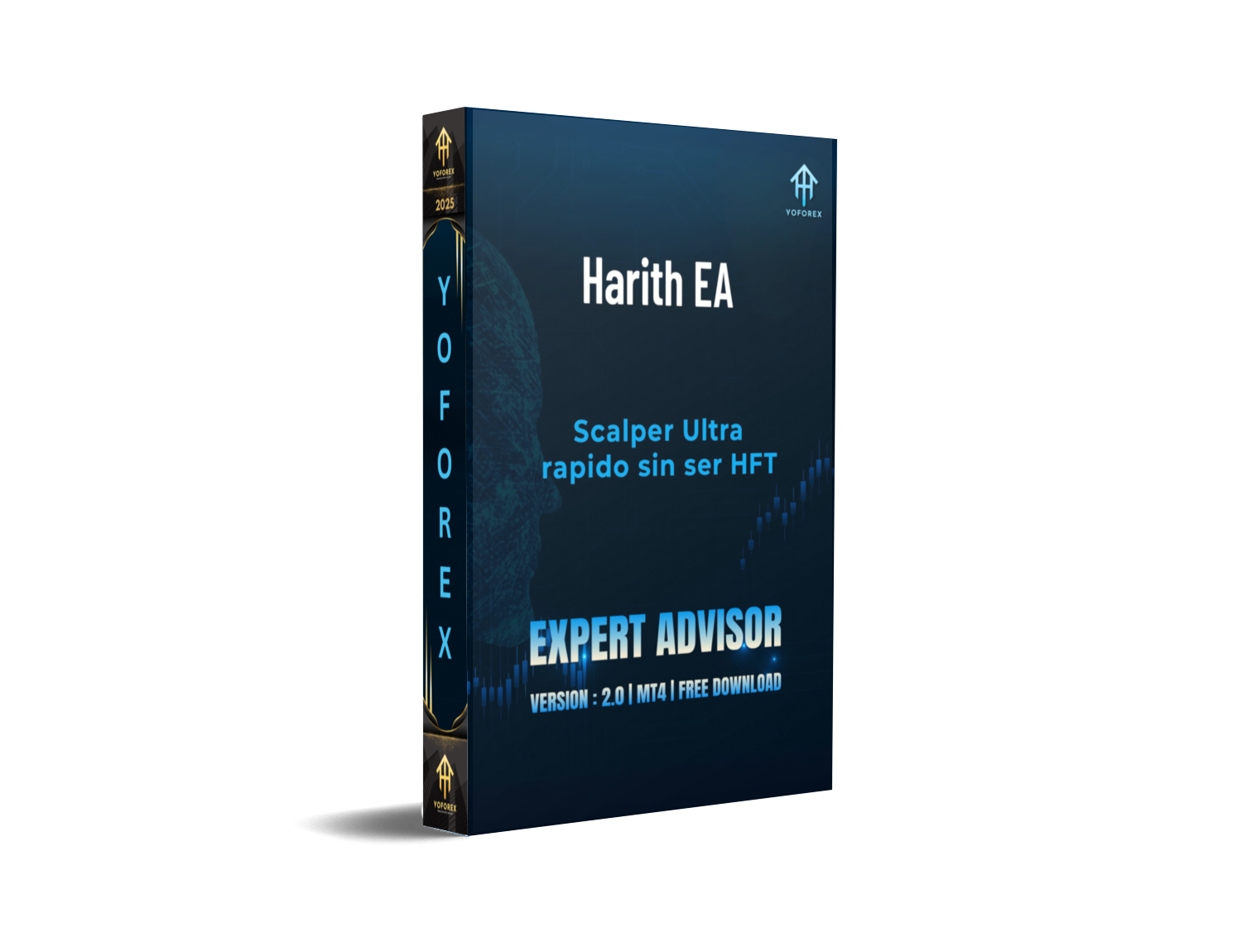
Tired of blowing accounts with shady EAs that promise the moon but wipe your wallet instead? Yeah, been there. That’s why Harith EA V2.0 for MT4 is such a breath of fresh air.
It’s smart, consistent, and absolutely free—courtesy of the YoForex team. Built for disciplined traders who still want some auto-action without risking it all, Harith EA is here to help you scale your trading, not sabotage it.
Overview of Harith EA V2.0 MT4
Harith EA is a fully automated Expert Advisor developed for the MetaTrader 4 (MT4) platform. It’s tailored to work best on major currency pairs and lower timeframes (typically M5 and M15), where volatility provides enough movement for scalping and short-term trend trades.
Unlike many paid bots flooding the market with over-optimized settings and martingale logic, Harith EA focuses on low drawdown, precision entries, and consistent profit targets. YoForex has backtested and run this EA in live conditions before giving it to the community—no fluff, just real results.
Key Features of Harith EA
- 1–2% Daily Profit Potential – Designed for stable compounding, not gambling.
- Low Drawdown (~5%) – Keeps your capital safe with tight risk controls.
- No Martingale or Grid – Zero account-wrecking tactics under the hood.
- Works Best on M5/M15 – Optimized for short-term timeframes.
- Pairs like EURUSD, GBPUSD, USDJPY – Proven and stable currency combos.
- Prop Firm Ready – Compliant with FTMO-style risk limits.
- News Filter Enabled – Avoids volatile events to protect your account.
- Smart Stop-Loss & Trailing – Dynamic SL and TP for adaptive risk.
- Slippage/Spread Control – Doesn’t enter trades in bad market conditions.
- Beginner Friendly Setup – Drag, drop, tweak settings, done.
- Ongoing Updates from YoForex – This ain’t a fire-and-forget bot.
- Full Support on Telegram & WhatsApp – Get help fast when needed.
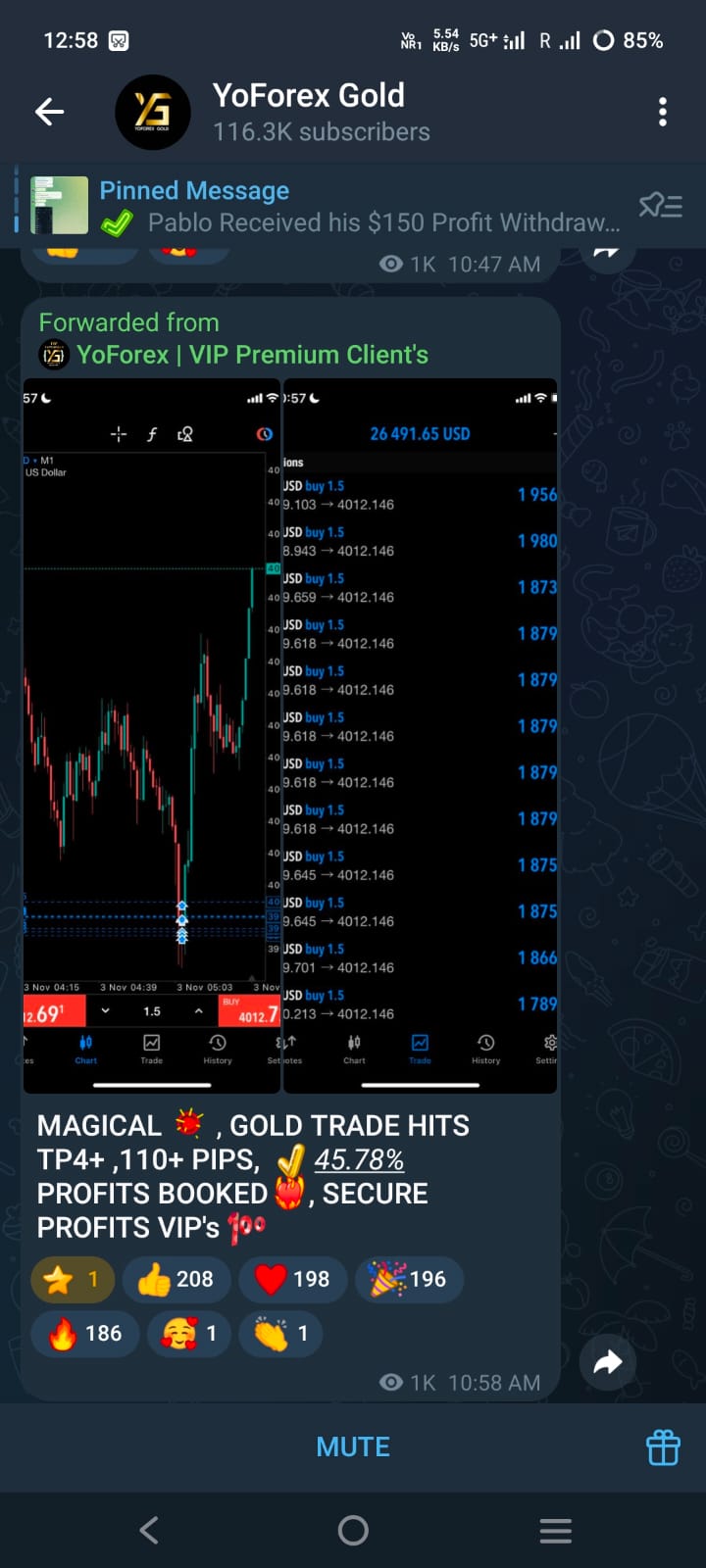
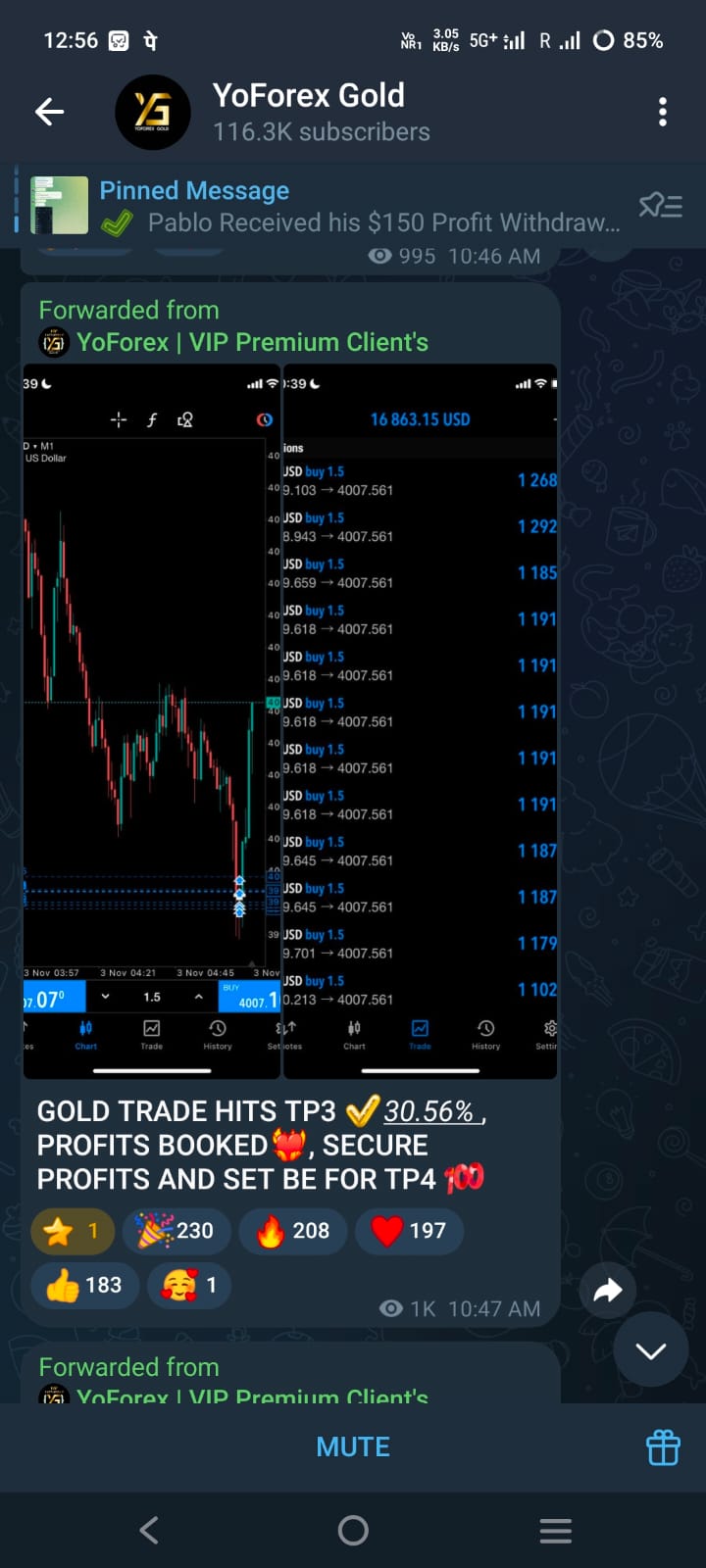
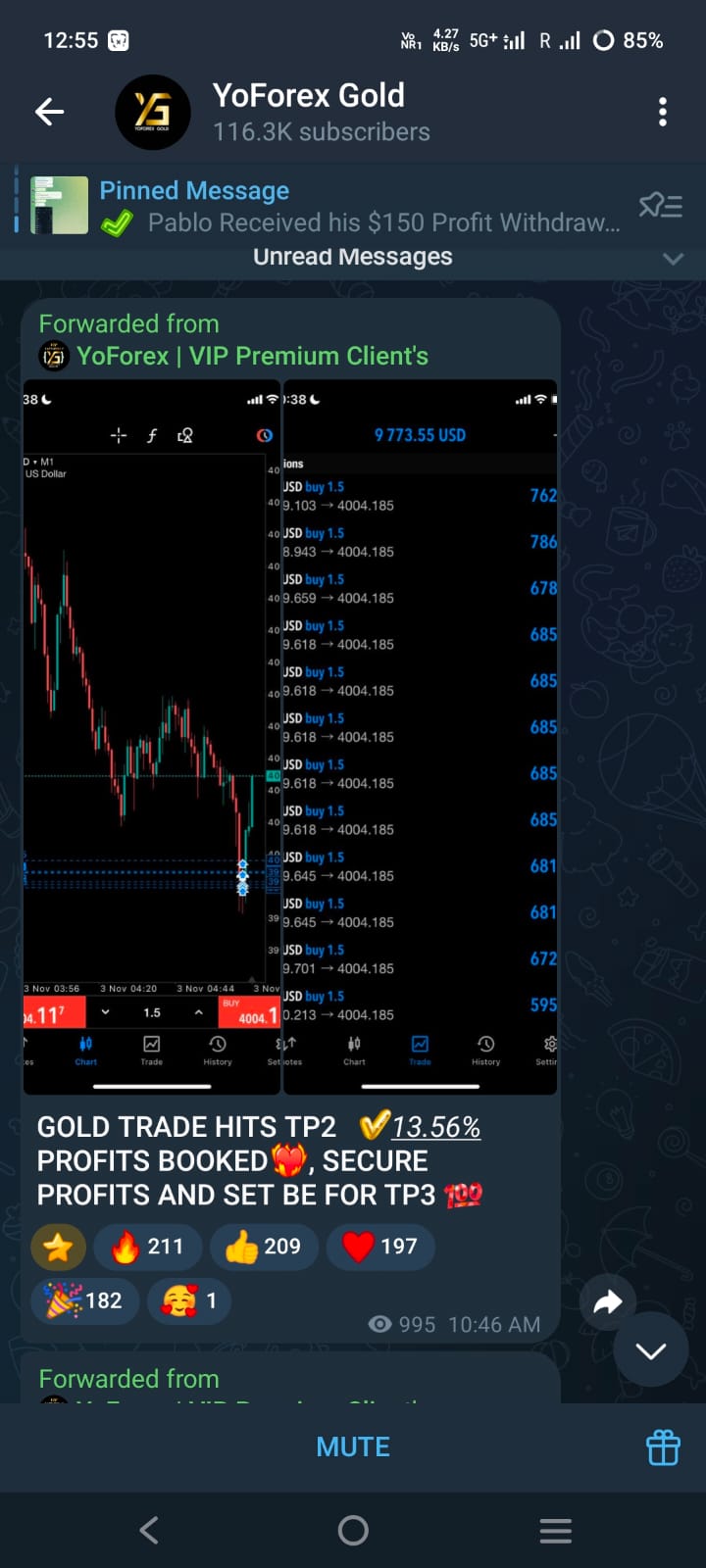
Backtest Results & Live Proof


How to Install & Configure Harith EA
Step 2: Move Files to MT4
- Open MT4 → File → Open Data Folder
- Navigate to:
MQL4/Experts - Paste the EA file there
- Restart MetaTrader 4
Step 3: Attach EA to Chart
- Choose a supported pair (e.g., EURUSD, GBPUSD)
- Load the M5 or M15 timeframe
- Drag the EA onto the chart
- Enable “AutoTrading”
Step 4: Recommended Settings
Use default settings or tweak risk levels based on account size.
Here’s a sample config screen:
Why Choose YoForex EAs?
- Fully verified tools – All EAs are backtested and monitored live.
- No shady fees – We mean it. Totally free.
- Lifetime access – No expiry nonsense.
- Ongoing development – We improve bots based on real trader feedback.
- Transparent team – Meet us on the About Page
Support & Disclaimer
If you face bugs or just wanna ask if a certain setting is right for your prop account—we’re just a ping away.

Comments
Leave a Comment